Button Text! Submit original article and get paid. Find out More

Latest

Showing posts with label How To. Show all posts

Monday, 30 December 2013


Have you ever missed out on any of your android notifications? Of course yes, Sometimes it just  happens that you clear some of your important notifications along with the not so important ones. Now the question that arises is ,Where did they go ? How can you get back old notifications ? And many such questions would cross your mind at that instance. So here we provide you the solutions to all these questions of yours.


Well the sad part is that you can get back all these old notifications only if your android phone works on android version 4.3 (Jelly Bean) or above. So here are the steps that you must follow to get back your old notifications :
    1. Go to your home screen and tap on apps icon
    2. Go to widget Section and scroll till you get 1*1 Setting Shortcut widget
    3. Drag and Drop into your home screen

  1. will open. Select Notifications.
  2. The Notification Shortcut will appear on your screen, Tap on it
  3. You will be able to check all your previous notifications.
If you face any problem in how to get back old notifications , then freely comment in the below comment box. Also like share and tweet the article if you liked it.


How To

HOW TO GET BACK OLD NOTIFICATIONS INTO YOUR ANDROID PHONE

Unknown  |  at  07:39


Have you ever missed out on any of your android notifications? Of course yes, Sometimes it just  happens that you clear some of your important notifications along with the not so important ones. Now the question that arises is ,Where did they go ? How can you get back old notifications ? And many such questions would cross your mind at that instance. So here we provide you the solutions to all these questions of yours.


Well the sad part is that you can get back all these old notifications only if your android phone works on android version 4.3 (Jelly Bean) or above. So here are the steps that you must follow to get back your old notifications :
    1. Go to your home screen and tap on apps icon
    2. Go to widget Section and scroll till you get 1*1 Setting Shortcut widget
    3. Drag and Drop into your home screen

  1. will open. Select Notifications.
  2. The Notification Shortcut will appear on your screen, Tap on it
  3. You will be able to check all your previous notifications.
If you face any problem in how to get back old notifications , then freely comment in the below comment box. Also like share and tweet the article if you liked it.


Friday, 27 December 2013


Do you get annoyed when you search for the picture or a video and you didn’t find it easily due to all extra images added into your gallery by Picasa Web Album for the Dropbox Instant Upload. Don’t you feel to delete all of them from the gallery or hide it from there. You might also get the thought that it would delete the images from the web also, then what should you do to hide  or delete  picasa dropbox  albums from gallery.
This two things that is Picasa and Dropbox make your gallery loaded with lots of unnecessary albums and pics and makes it difficult for you to find the important picture when you are in need of it.
Here are the few simple steps that would hide the images and albums from the gallery and also wont delete them from the respective server.


Step 1 : Stop Syncing Activity
 
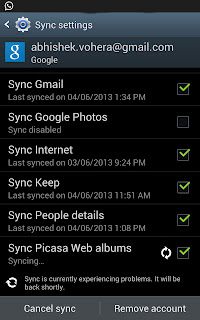
The first step to do the following task is to stop syncing activity, it can be done by going to settings option and then to accounts sub-heading – where it will display which all accounts are being sync regularly with the phone. Then Select Google Account or The Dropbox account , after it go to the syncing accounts and over there a long list will be displayed of all the activities that are being synced with the smartphone. Over there go to the last option which will be the “Sync Picasa Web Albums” – You need to uncheck it. You need to do the same for Dropbox also.
Step 2 : Clear Gallery Data
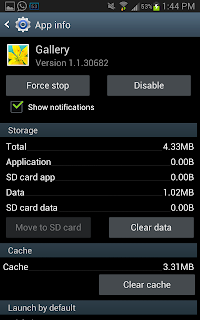
Dear friends now the second step is to clear the gallery data and the cache. Now the syncing of Albums is stopped so the new albums will not be displayed, but we need to remove the old albums which were already synced. To do this we need to go to the Setting -> Application Manager -> All apps -> Gallery. Now this screen like this will display and then you need to just tap on the Clear Data and Clear Cache.
Step 3 : Open The Gallery
Guys, the two important steps are done now, the simple thing which is left now is to open thegallery and refresh it. Refreshing it will display all the albums and images which are present on the external card or internal memory. Now you are done with the steps and you have successfully removed Picasa and Dropbox album from the Gallery.
So we are done with steps and now the question is Do you prefer to have the Picasa and Dropbox album in your smartphone gallery and make your gallery loaded with lots of unnecessary albums and pics OR just follow this steps and make your gallery simpler and easy to use and find the images.

How To

HOW TO REMOVE PICASA AND DROPBOX ALBUM FROM ANDROID GALLERY

Unknown  |  at  08:33


Do you get annoyed when you search for the picture or a video and you didn’t find it easily due to all extra images added into your gallery by Picasa Web Album for the Dropbox Instant Upload. Don’t you feel to delete all of them from the gallery or hide it from there. You might also get the thought that it would delete the images from the web also, then what should you do to hide  or delete  picasa dropbox  albums from gallery.
This two things that is Picasa and Dropbox make your gallery loaded with lots of unnecessary albums and pics and makes it difficult for you to find the important picture when you are in need of it.
Here are the few simple steps that would hide the images and albums from the gallery and also wont delete them from the respective server.


Step 1 : Stop Syncing Activity
 
The first step to do the following task is to stop syncing activity, it can be done by going to settings option and then to accounts sub-heading – where it will display which all accounts are being sync regularly with the phone. Then Select Google Account or The Dropbox account , after it go to the syncing accounts and over there a long list will be displayed of all the activities that are being synced with the smartphone. Over there go to the last option which will be the “Sync Picasa Web Albums” – You need to uncheck it. You need to do the same for Dropbox also.
Step 2 : Clear Gallery Data
Dear friends now the second step is to clear the gallery data and the cache. Now the syncing of Albums is stopped so the new albums will not be displayed, but we need to remove the old albums which were already synced. To do this we need to go to the Setting -> Application Manager -> All apps -> Gallery. Now this screen like this will display and then you need to just tap on the Clear Data and Clear Cache.
Step 3 : Open The Gallery
Guys, the two important steps are done now, the simple thing which is left now is to open thegallery and refresh it. Refreshing it will display all the albums and images which are present on the external card or internal memory. Now you are done with the steps and you have successfully removed Picasa and Dropbox album from the Gallery.
So we are done with steps and now the question is Do you prefer to have the Picasa and Dropbox album in your smartphone gallery and make your gallery loaded with lots of unnecessary albums and pics OR just follow this steps and make your gallery simpler and easy to use and find the images.

General

© 2013 Tech Smoothy Converted by BloggerTheme9
Powered by Blogger.